
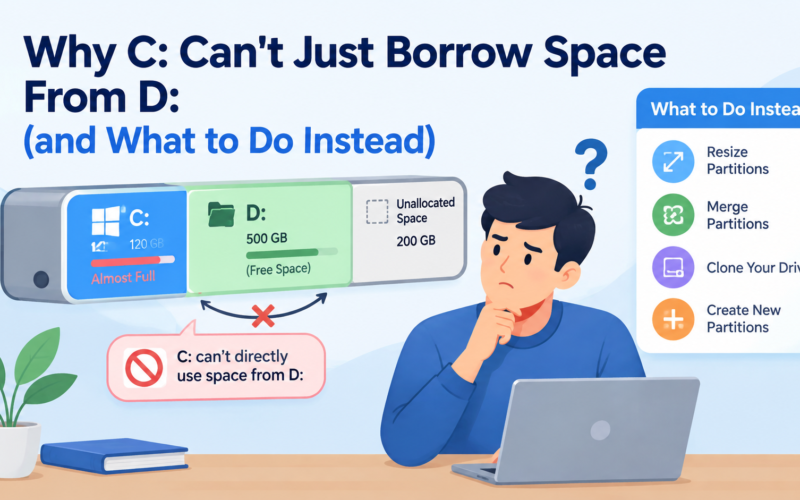
C: is full. Windows keeps warning you about it. You open File Explorer, and D: has 200 GB free and isn’t doing a thing. It feels like Windows should let C: dip into that, but it won’t.The reason is that C: and D: are less separate than they look, and disk partition management is what gets you out of it.
What a partition actually is
Think of a physical drive as a field. A partition is one fenced-off plot inside it, and Windows manages each plot on its own. That’s how a single SSD ends up as C:, D:, and a few small hidden partitions you’ve probably never seen in Explorer.
So when C: fills up, moving files around achieves nothing. The fence stays where it is. What you need is to move the fence, which means resizing the partitions themselves.

Before you touch anything, try the easy stuff
Run Storage Sense or Disk Cleanup first. Windows updates can take up tens of gigabytes on their own, and old temp files add up quietly. Sometimes clearing those is enough and you never need to open a partition tool at all.
If it isn’t enough, the two usual routes are resizing what you already have or moving to a bigger SSD. There’s also a third group: people with an old disk full of partitions they don’t need, who just want to tidy it up.
Free space is not unallocated space
This is the bit that confuses most people. D: showing 150 GB free doesn’t mean C: can use it. That space is still D:’s, and it stays D:’s until D: is shrunk.
Shrinking D: creates unallocated space, which belongs to no partition. You can make a new partition out of it, or sometimes add it to another one. “Sometimes” because of position: Extend Volume in Windows Disk Management only works when the unallocated space sits right next to the partition you’re extending, and on the correct side. If D: is between C: and the free space, the button is greyed out, and Windows gives you no explanation. A third-party partition manager can shift the in-between partitions out of the way. It also shows a proper map of the disk, which tells you far more than the free-space numbers in File Explorer.
Does resizing wipe the data?
Normally no. Good tools resize supported partitions without a format. Back up anyway. You’re editing the structure that tells Windows where files live, and a power cut or crash in the middle can leave you with a mess. Copy the important stuff to another drive first. It takes ten minutes and can save you a very bad day.
Folding D: into C:
If you never use D:, merging it is possible depending on layout and file system. But look inside first. Not opening a drive for months doesn’t mean it’s empty, and old documents, program data and forgotten scans have a way of turning up.
Moving Windows to a bigger SSD
Say you’re swapping a 500 GB drive for a 1 TB one and don’t want to reinstall every program. Cloning is the answer. A compatible tool copies your existing system across, settings and all.
The trap is that Windows isn’t only C:. There’s normally a small EFI boot partition and usually a recovery partition, each a few hundred megabytes or less. Copy just your visible files and the new drive may not boot. Clone the whole disk, or make sure the tool picks up every system partition.
Drive health, and MBR vs GPT
HDDs and SSDs both use partitions, and both can be resized the same way. What matters is condition. A hard drive that clicks, or a drive that keeps dropping out or throwing errors, is a hardware problem, and partition changes will only make it worse. Get the data off first, and for anything truly important, ask a recovery service.
You’ll also see MBR and GPT mentioned. They’re two partitioning styles. Most newer PCs use GPT with UEFI, and older ones often use MBR. Tools can convert between them, but don’t do it just because GPT is newer. Check how your PC boots first.
A short checklist
Confirm which physical disk you’re on. Know which partition holds Windows. Check where the unallocated space is. Plug the laptop in. Back up.
Picking a tool
For disk partition management, choose by task. More room on C: needs resize and move. A new drive needs cloning or OS migration. Cleaning up needs create, delete, merge and resize. If you handle different machines, check for both MBR and GPT support. And pick something with a clear disk map, because before you click Apply you want to be certain which partition it’s about to change.
A full C: doesn’t mean a new computer, and a bigger SSD doesn’t mean reinstalling Windows. Go slowly, back up first, and check twice which partition you’re changing.